Make your next offer
feel personal.
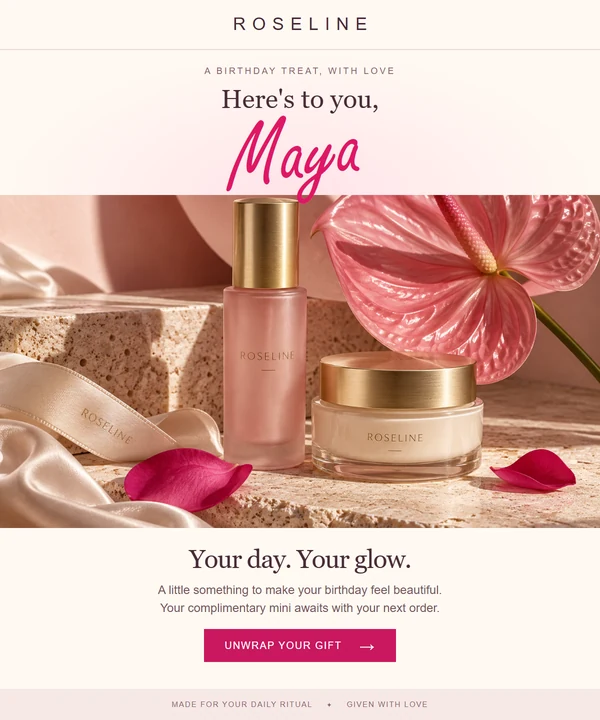
Put each customer's name in a birthday invitation or show their progress toward a reward. Create one branded image, then personalize it with the recipient fields in your email platform.
Show members how close they are
to the next tier.
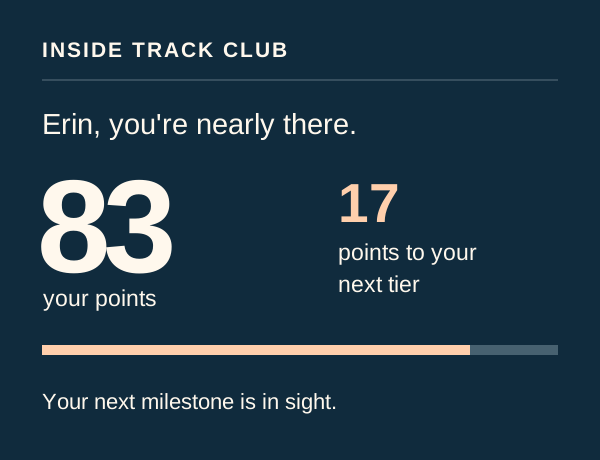
A loyalty update can remind someone how close they are to their next reward. Put their name, points balance and the amount still to earn together in a branded image, with a link in your email to explore the benefits.
Use the member fields held in your email platform to personalize the same design for each recipient.
Welcome them
into the team.
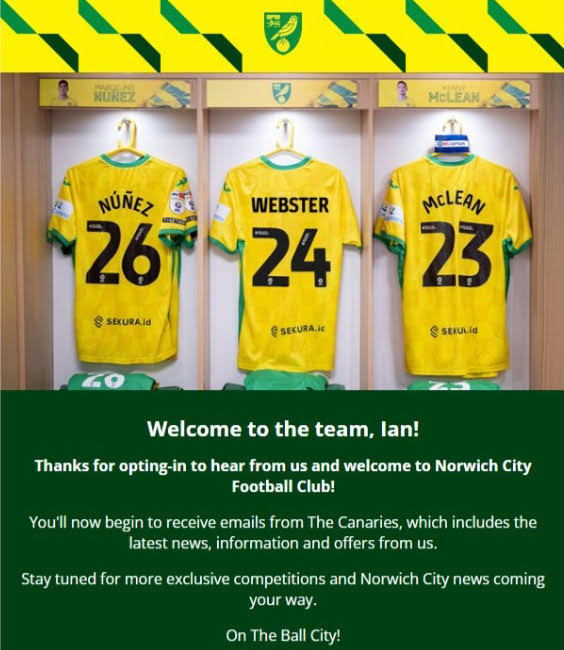
Norwich City welcomed new email subscribers with a football shirt carrying their name. Your brand could make that first message personal with a membership card, an event pass or a greeting designed for each recipient.
Create the artwork once. Each recipient's name becomes part of the image when their personalized image URL is loaded.
Make the design
your own.
Keep the fonts, colors and imagery that customers recognize. Arrange your own images, text and shapes on the canvas, then choose which details change for each person. You control the layout and can make changes yourself.

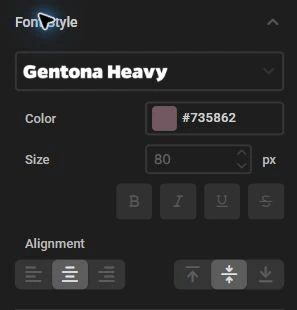
Upload your brand's fonts and artwork. Adjust text size, alignment, colors, outlines and shadows to fit the campaign.
Reuse the design for your next send. Change the offer or artwork while keeping the personalized fields in place.
It made it a lot easier for us to personalize and tailor our automated emails.
Make room for
every customer's details.
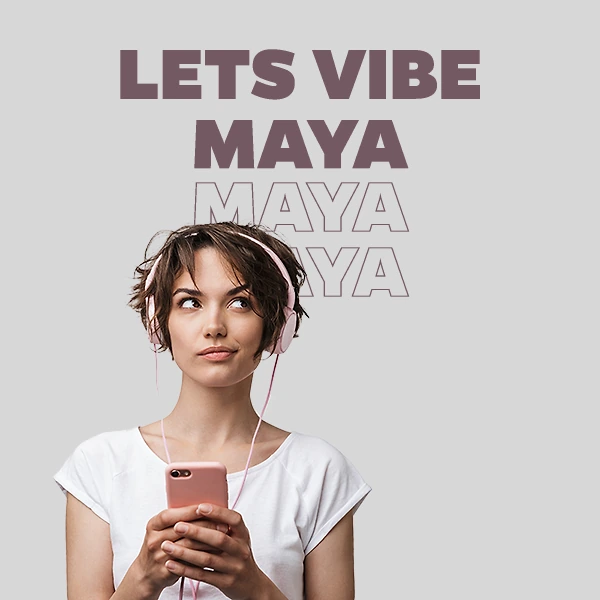
The same design welcomes Maya and Alexandriana. When the name is blank, the configured fallback reads “Together.” Preview the values your audience will bring before sending.


Use it in the emails
you already send.
Start with a birthday, welcome or loyalty email you already have planned. Choose the customer detail that would make its image more useful or personal.
-
Design the image
Upload your artwork and add the text or image fields you want to personalize. Set a fallback for missing values.
-
Connect your recipient fields
Add your email platform's merge tags to the NiftyImages image URL. Your platform fills those tags with each recipient's values. It needs to support merge tags inside an image URL.
-
Preview, test and send
Check sample values in the preview, then add the image to your email and send a test through your platform. Check the personalized result and the email's links before sending your campaign.
When the detail lives
outside your email platform.
For a product price or account balance held in another system, connected data can supply the value for your image. Full Data Stores and External Web APIs are available on Business. They require a configured data source.
Merge-tag values come from your email platform; they do not automatically refresh from a customer's account. Connected data can be retrieved when the image is requested, but email apps may reuse a cached image on later opens.
Explore connected dataMake your next email
feel personal.
Create one image in your brand's style and personalize it for the people receiving it.
Create your first image